
Website Leads From Google Maps: Find Them, Build the Site
Learn how to find website leads on Google Maps: spot businesses with no site, check they are active, and plan a simple website they will want to buy.
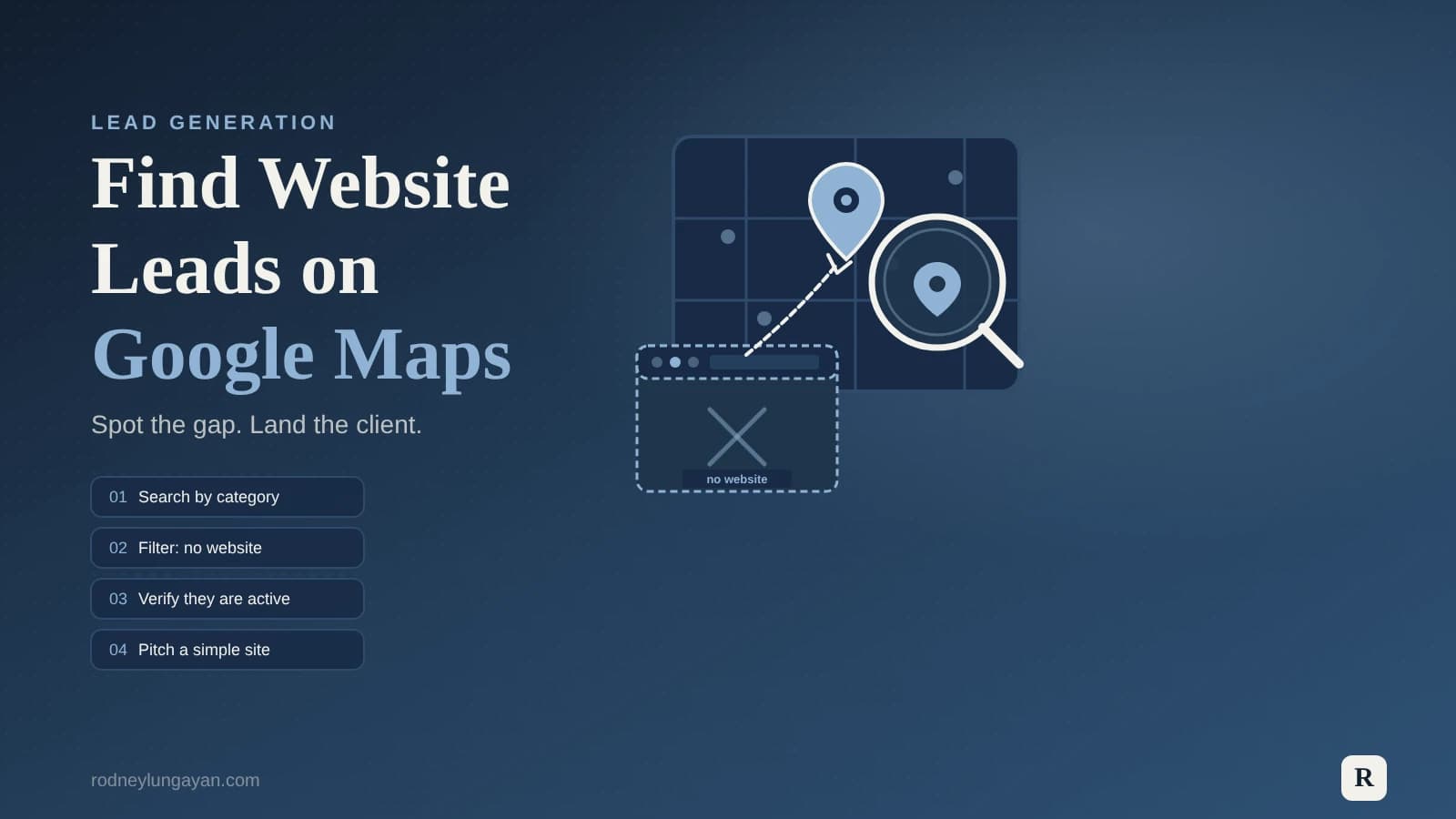
Website leads are local businesses that clearly have customers but no website of their own. Google Maps is one of the best places to find them, and each listing also tells you what the new site should include. This guide shows how to find website leads, check that they are real, and turn each one into a simple website project.
The method works in any town or city and for any trade. It does not need special software. It needs clear rules, careful reading of each listing, and the habit of checking your work in small batches.
1. Know what makes good website leads
Not every listing without a website is worth contacting. Set your rules before you search, and write them down. A useful starting set looks like this:
- No website: the Website field on the profile is empty. A link to Facebook, Instagram or TikTok counts as no website, because a social page is not a site the business owns.
- Enough reviews: at least five reviews shows that real customers use the business.
- Still active: the profile is not marked closed, and there is a recent review, owner reply or photo.
- In your area: the address names the town or city you serve.
Leave out any business whose Website field points to its own domain. It already has a site, so it is not a lead for this method.
2. Set up Google Maps for lead research
Sign in to your Google account before you start. When you are signed out, Maps shows a "limited view" with only a couple of results per search. If you use an AI browser agent, sign in yourself and complete any 2-step prompt. An agent should never type your password, and you should never paste it into a chat.
Then search by trade and area, such as "hair salon in [neighbourhood], [city]". Small searches give cleaner lists than one search for a whole city. Maps loads results in small groups as you scroll, so use real mouse scrolling and stop at the message "You've reached the end of the list". A single search tops out at around a hundred results.
Keep the browser window visible while any automated run is going. Browsers slow down hidden pages, and the Page Visibility API docs explain that timers in background tabs are throttled. In practice, a listing panel that has not finished loading gets read with no address, no reviews and no website. That looks exactly like a perfect lead, and it is not one.
3. Record what you need from each listing
Open every result and read the details panel. Log the same fields every time, so the list can be sorted and filtered later.
- Business name and category, so you can group leads by trade.
- Phone number, plus an email if one is public.
- Socials: any Facebook, Instagram or TikTok link, including one placed in the Website field.
- Full address and the Google Maps link, so every row can be checked later.
Look at the business's social pages for an email or a second phone number before you leave a field blank. If a detail is not public, leave it empty. Never guess it.
Check the address text as well. A search for one city also returns places from nearby towns, and some results show only a plus code until you open them. A lead outside your service area is wasted effort.
4. Check that the lead is active
A closed business is a wasted message. Skip any profile marked permanently closed or temporarily closed. Then open the reviews and sort them by newest. A review from the last few months, an owner reply or fresh photos all point to a business that is still trading.
Write down the rule you used, such as "not closed, plus a review or owner reply in the last six months". A fixed rule keeps the list consistent from the first row to the last.
5. Work in small batches
Treat an empty field as a failed read, not as a finding. A listing with no address, no review count and no website should be re-checked before it is added to the list.
Work in batches of 20 qualifying businesses. After each batch, review the table and spot-check a few rows against the live listings. Then continue. A bad batch costs you 20 rows, not thousands, and you catch the problem while it is still small.
6. Plan the website before you reach out
The listing and the social page already hold most of what a first version of the site needs: the services, the photos, the opening hours and the phone number. Use them to sketch the site before you send the first message. A simple site is usually enough to start:
- A clear home page that says what the business does and where.
- A services section written in plain language.
- Photos from the business's own pages, used with the owner's permission.
- Opening hours, a map and a tap-to-call button for mobile visitors.
- A few real customer reviews.
Most customers will open the site on a phone, so design for small screens first. Add a clear page title, a short description, and the town or city in the headings, so people searching locally can find it. SEO-ready websites cover these basics, and WordPress development is a common way to build a site that the owner can edit later.
Once the site is live, add its address to the Website field of the Google Business Profile, so the listing links to it.
7. Reach out with a short, specific message
A good first message is short and about the business, not about you. Mention one thing you noticed, such as strong reviews and no website. Say what a site would do for them, for example help new customers find them and call. End with one clear next step, like a quick call or a reply.
Do not promise rankings or a set number of customers. Follow up once after a few days, then stop. Keep a Status column and a Notes column in your list, so you always know who replied and what was agreed.
8. Browser or API?
A browser run is fine for a few hundred leads that you want to hand-check. For thousands of listings, clicking through pages is slow and fragile. The Places API is built for this kind of search and returns structured data, though it comes with its own costs and usage rules.
Need a website built for a new client?
If you want a simple site built for a business you found, or a scheduled workflow that keeps your lead list fresh, take a look at the web development services. See what is possible in the case studies. Ready to start? Get in touch with the business type and what you want the site to do.